View and manage Agent Memory service
View and manage your Agent Memory service in Redis Cloud.
| Redis Cloud |
|---|
After you have created your first Agent Memory service, selecting Agent Memory from the Redis Cloud Console menu will take you to the Agent Memory Services page.
This page displays a list of all Agent Memory services associated with your account.

Select your Agent Memory service from the list to view the service's details.
Configuration tab
The Configuration tab lets you view the details of your Agent Memory service. It contains the following sections:
- The General settings section provides the connection details and general settings for your Agent Memory service.
- The Memory configuration section provides the service settings for your Agent Memory service.
- The Memory types & extraction section shows any custom memory types defined for your service.
- The Actions section lets you flush or delete your Agent Memory service.
Some of these settings can be changed after service creation. To do so, select the Edit button.
General settings
The General settings section provides the connection details and general settings for your Agent Memory service.
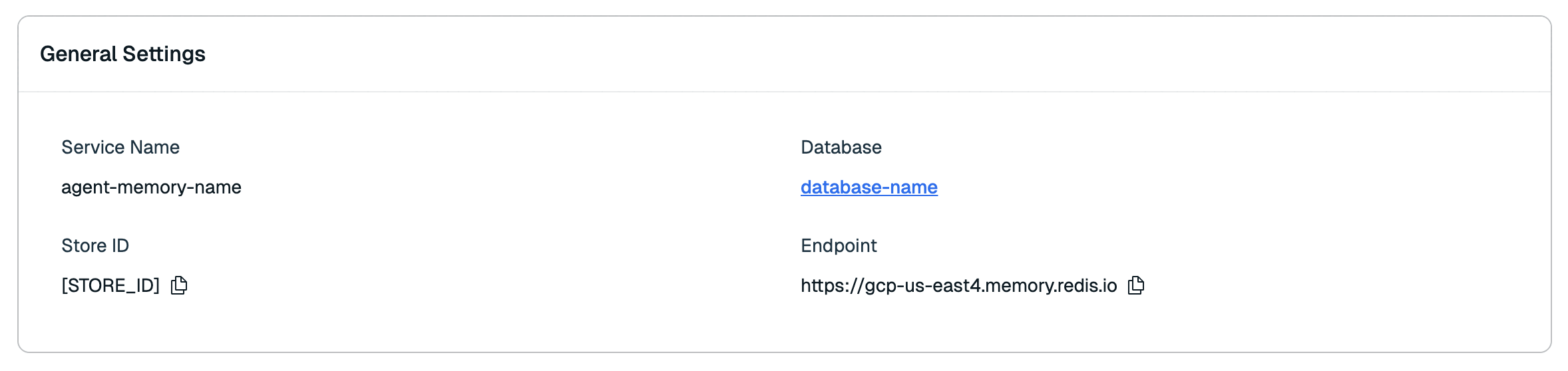
| Setting name | Description |
|---|---|
| Service name | The name of your agent memory service. (Editable) |
| Database | The name of the database your service uses. |
| Store ID | The unique ID of your Agent Memory store. |
| Endpoint | The base URL for any Agent Memory requests. |
Select the Copy button next to the Store ID and API Base URL to copy them to the clipboard.
Follow the Redis Cloud Agent Memory REST quickstart to use the connection information and API key.
Memory configuration
The Memory configuration section shows the time-to-live (TTL) for memory storage, the extraction cadence, and the automatic summarization settings for session memory.
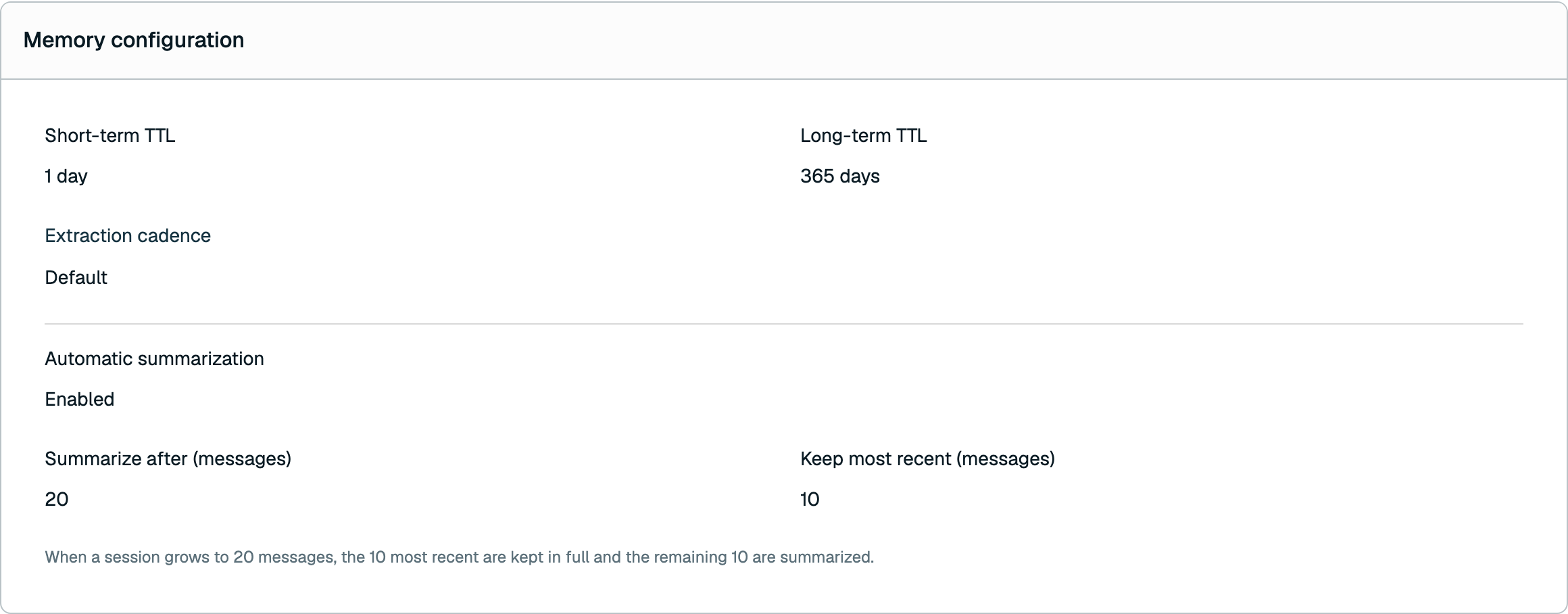
| Setting name | Description |
|---|---|
| Short-term TTL | The time-to-live (TTL) of your agent's short-term memory (also known as session memory). (Editable) |
| Long-term TTL | The time-to-live (TTL) of your agent's long-term memory. (Editable) |
| Extraction cadence | How often the extraction pipeline runs while a session is active. Defaults to 5 minutes; can be set to a value between 60 and 600 seconds. (Editable) |
| Automatic summarization | Whether older messages in a session are automatically compressed into a summary to keep session memory concise during long conversations. (Editable) |
| Summarize after (messages) | The number of messages a session can hold before older messages are summarized. Shown only when automatic summarization is enabled. (Editable) |
| Keep most recent (messages) | The number of most recent messages that are always kept in full and never summarized. Shown only when automatic summarization is enabled. (Editable) |
Memory types & extraction
The Memory types & extraction section shows any custom memory types defined for the service, each listed with its name, fields, and extraction strategy.
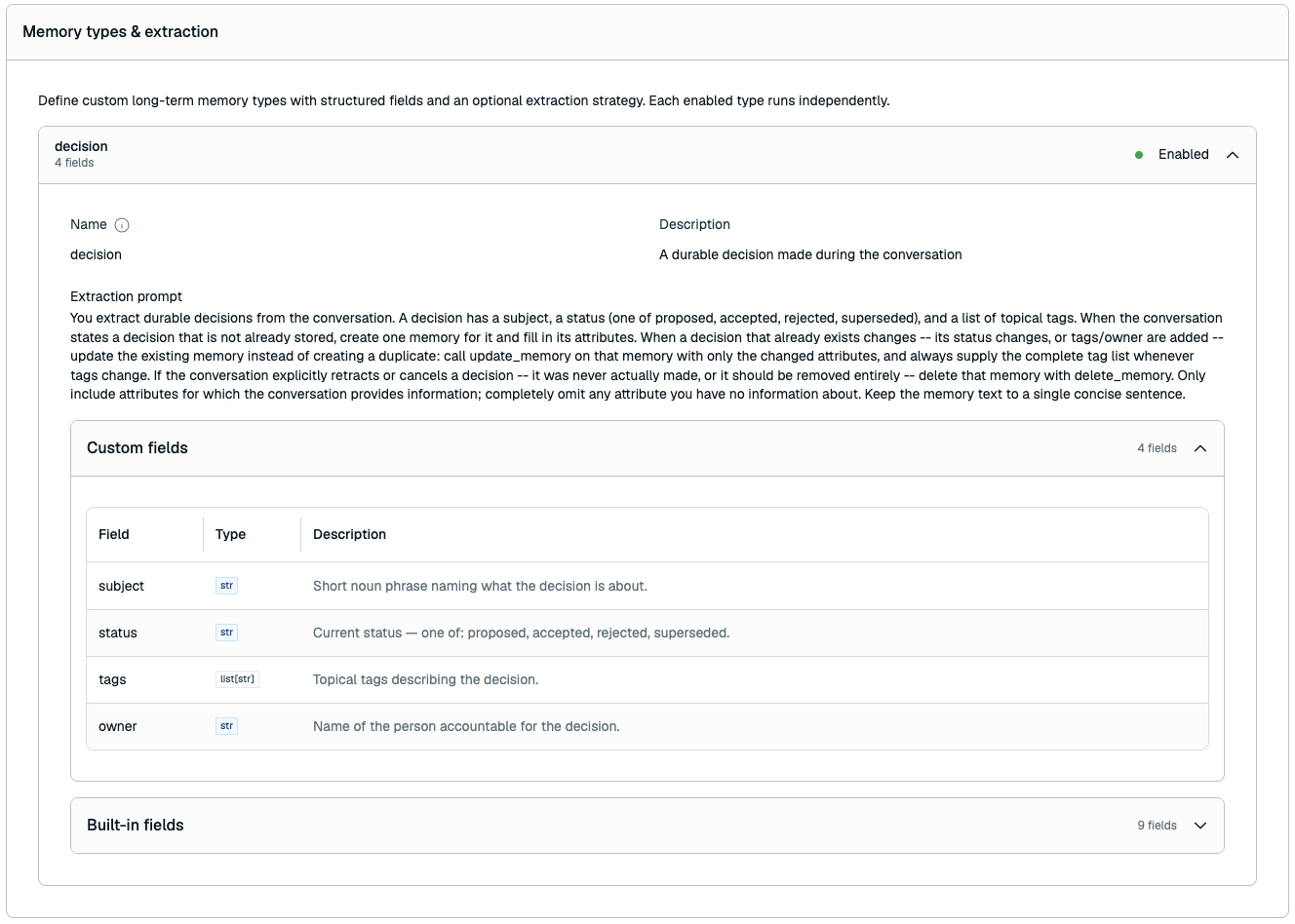
Custom memory types
Because a custom memory type's structure is fixed after creation, only some settings can be changed when you edit the service:
| Setting name | Description |
|---|---|
| Name | The name of the custom memory type. (Read-only) |
| Fields | The fields that make up the custom memory type, with their names, types, and descriptions. (Read-only) |
| Extraction prompt | The extraction strategy prompt for the custom memory type. (Editable) |
| Enabled | Whether the extraction strategy is active. (Editable) |
To change a custom memory type's name or fields, you must create a new service. You can, however, add a new custom memory type when editing the service, up to the limit of 3 custom memory types.
Actions
The Actions section lets you flush or delete your Agent Memory service.
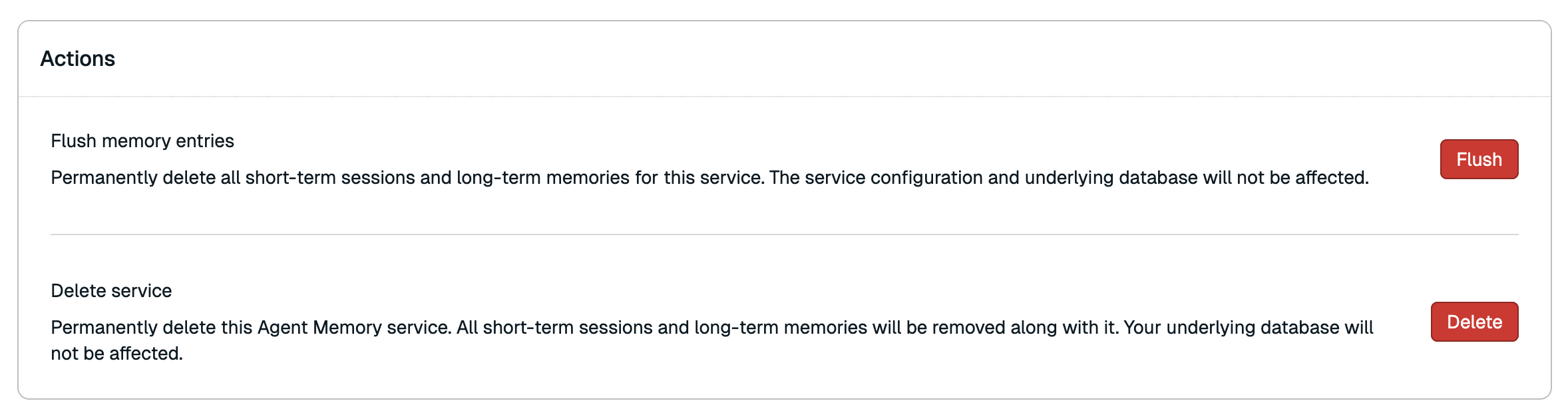
Flush memory entries
Flushing the service completely erases all stored memory data while preserving the service configuration and the search index used by the service.
To flush the service:
-
Select Flush.
-
A confirmation dialog will appear. Select Flush again to confirm.
Flushing the service is permanent and cannot be undone, and will result in empty memory retrieval results until new memory is stored.
Delete service
Deleting your Agent Memory service permanently deletes all associated memory data, the service configuration, and the Agent Memory search index. It also immediately terminates all API keys associated with the service. Data stored in other indexes within the same database will remain unaffected.
To delete your Agent Memory service:
-
Select Delete.
-
A confirmation dialog will appear. Select the checkbox to confirm that you want to delete the service.
-
Select Delete again to confirm.
Deleting the Agent Memory service is permanent and cannot be undone.
Metrics tab
The Metrics tab provides a series of graphs showing performance data for your Agent Memory service.
| Metric | Description |
|---|---|
| Short-term Memory Latency | The average time to process a Short-term memory (or Session memory) lookup request. |
| Long-term Memory Latency | The average time to process a Long-term memory lookup request. |
API keys tab
The API keys tab shows a list of all API keys for your service.
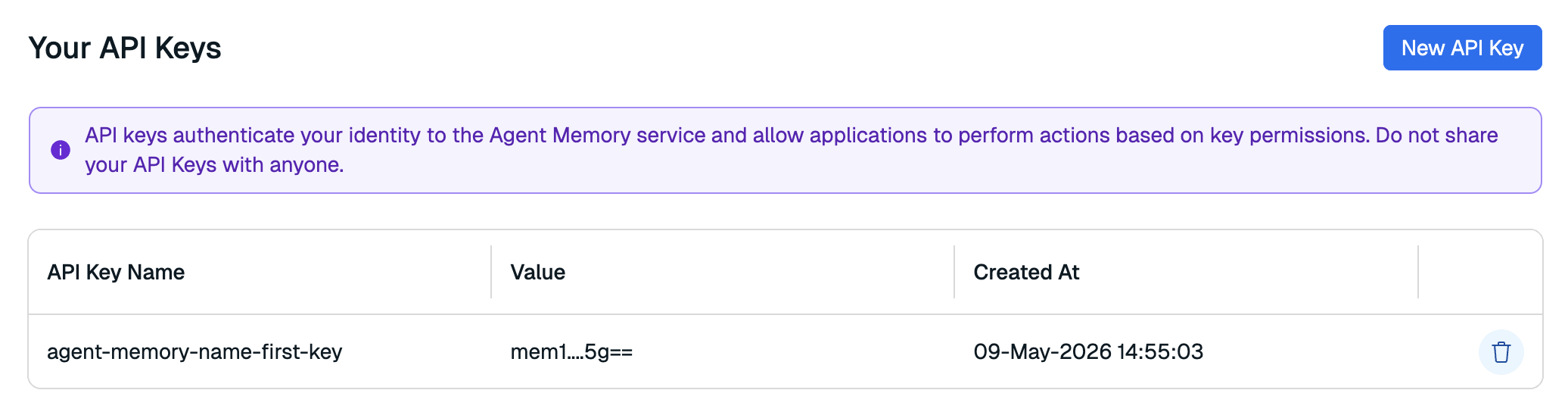
Here, you can generate a new API key or remove any keys that are no longer in use. You can generate or remove service API keys at any time.
Generate a new service API key
To generate a new service key:
-
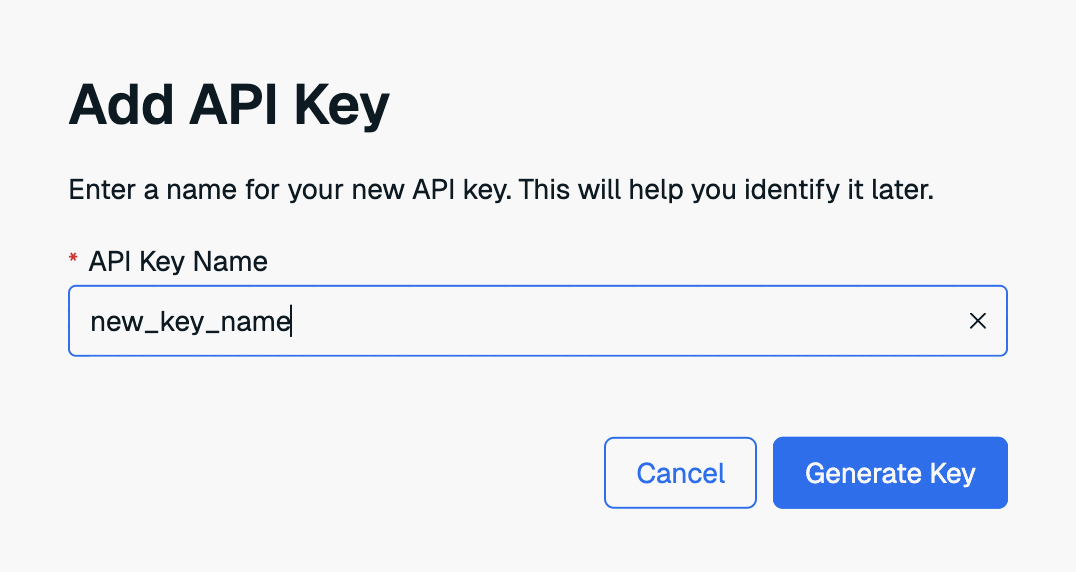
Select New API key.

-
Enter a new name for your API key.
-
Select Generate key to generate your new API key.
-
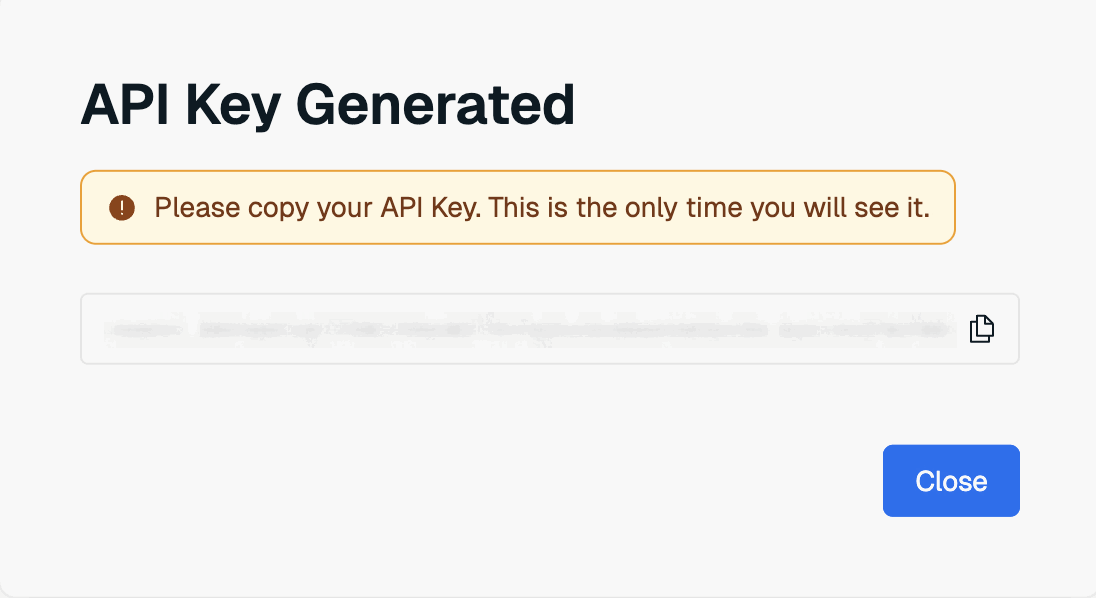
The new key will appear in a dialog box. Select Copy to copy the key to the clipboard.
 Warning:
This is the only time the value of the user key is available. Save it to a secure location before closing the dialog box.
If you lose the service key value, you will need to generate a new key again.
Delete API key
To delete an API key, select the Delete API key button next to the old key.
